?unique=d2b836c)
Іntroduction (Why This Is Needed)
When working with Odoo Online, there are situations where changes need to be reviewed, business processes analyzed, or system settings adjusted with the help of external experts or consultants.
Performing such actions directly in the production database is risky, as any mistake may affect real business data and daily operations.
To avoid these risks, Odoo Online provides an official way to create a test environment by duplicating the existing database. This allows all testing, analysis, and configuration work to be done safely, without impacting the live system.
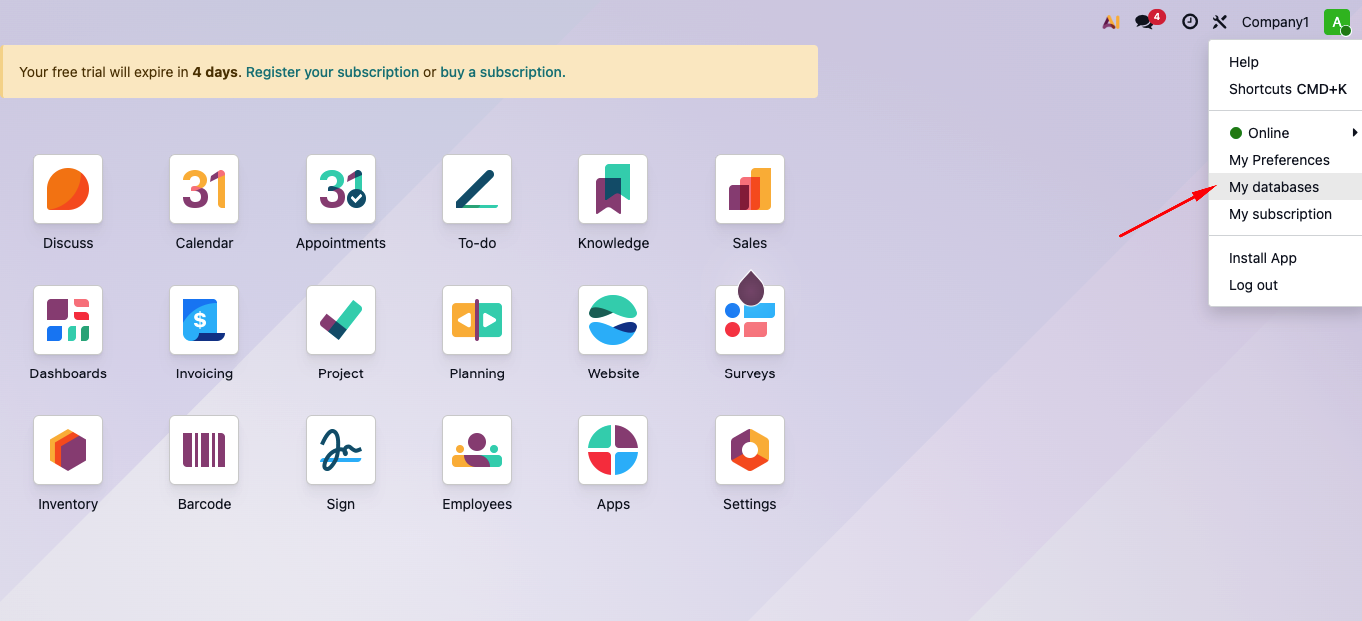
Step 1. Log in to your Odoo account and open the database manager
First, log in to your Odoo account associated with the database you want to duplicate.
After logging in, navigate to the list of available databases. This is where Odoo allows you to manage your databases, including duplicating them for testing purposes.
From this screen, you will be able to select the production database that will be used as the source for creating a test environment.
See the screenshot below for reference.
Step 2. Select the database and open database management
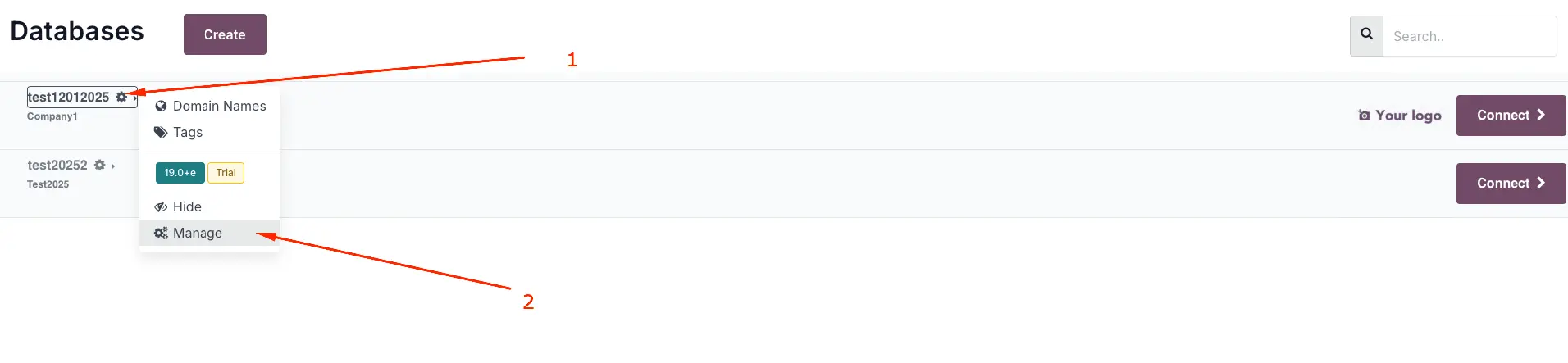
In the database list, locate the database you want to use as the source for the test environment.
Click on the gear icon next to the selected database and choose Manage from the dropdown menu.
This action opens the database management screen, where you can perform administrative actions such as duplicating the database.
See the screenshot below for reference.
Step 3. Duplicate the database to create a test environment
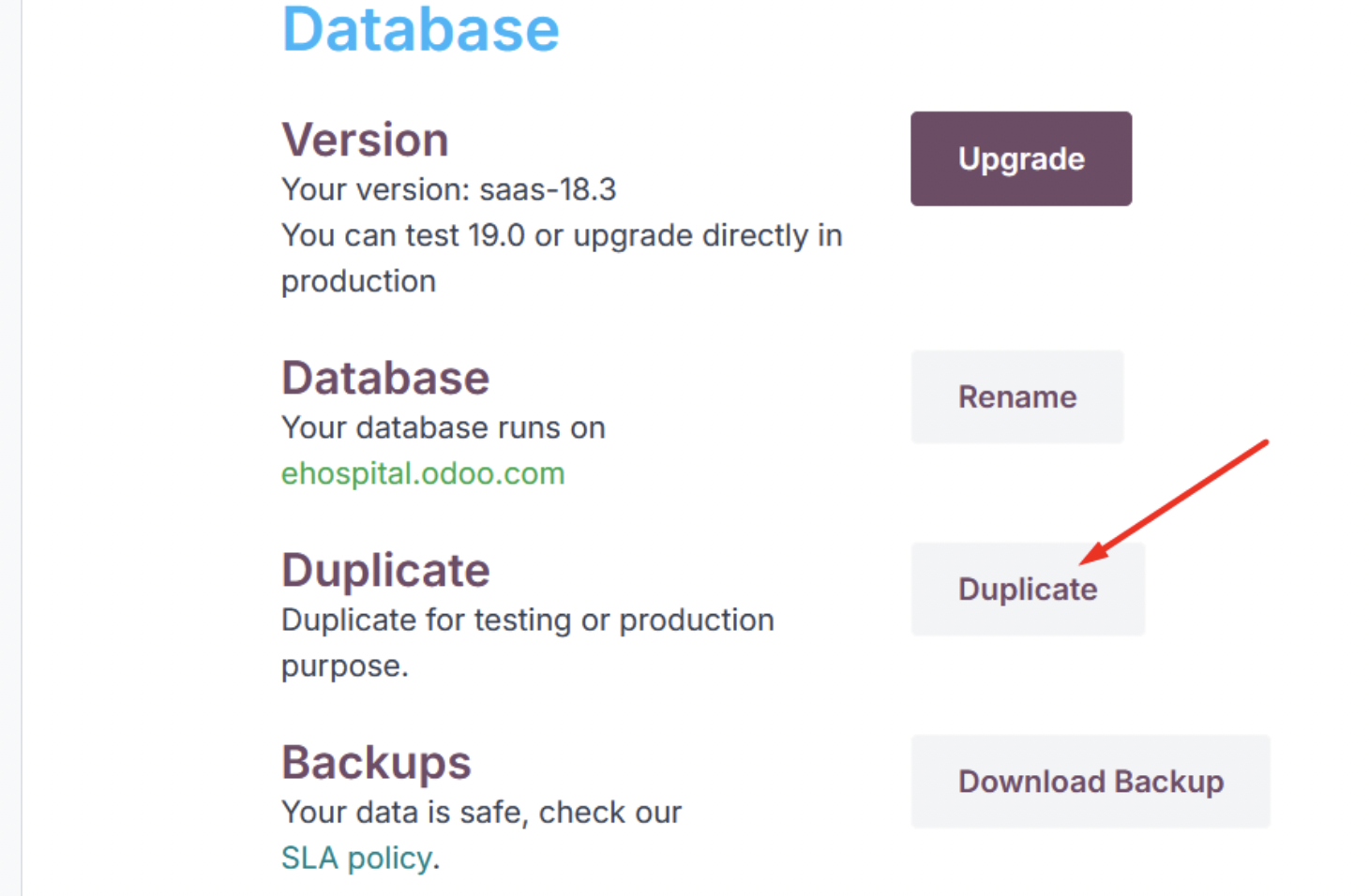
In the database management window, locate the Duplicate button and click on it.
After clicking Duplicate, a new window will appear. In this window, enter the name of the test database (for example, adding -test or -staging to the original name).
Once the name is specified, click the Duplicate button to start the duplication process.
Odoo will then create a full copy of the selected database, which can be used as a test environment without affecting the production system.
See the screenshots below for reference.
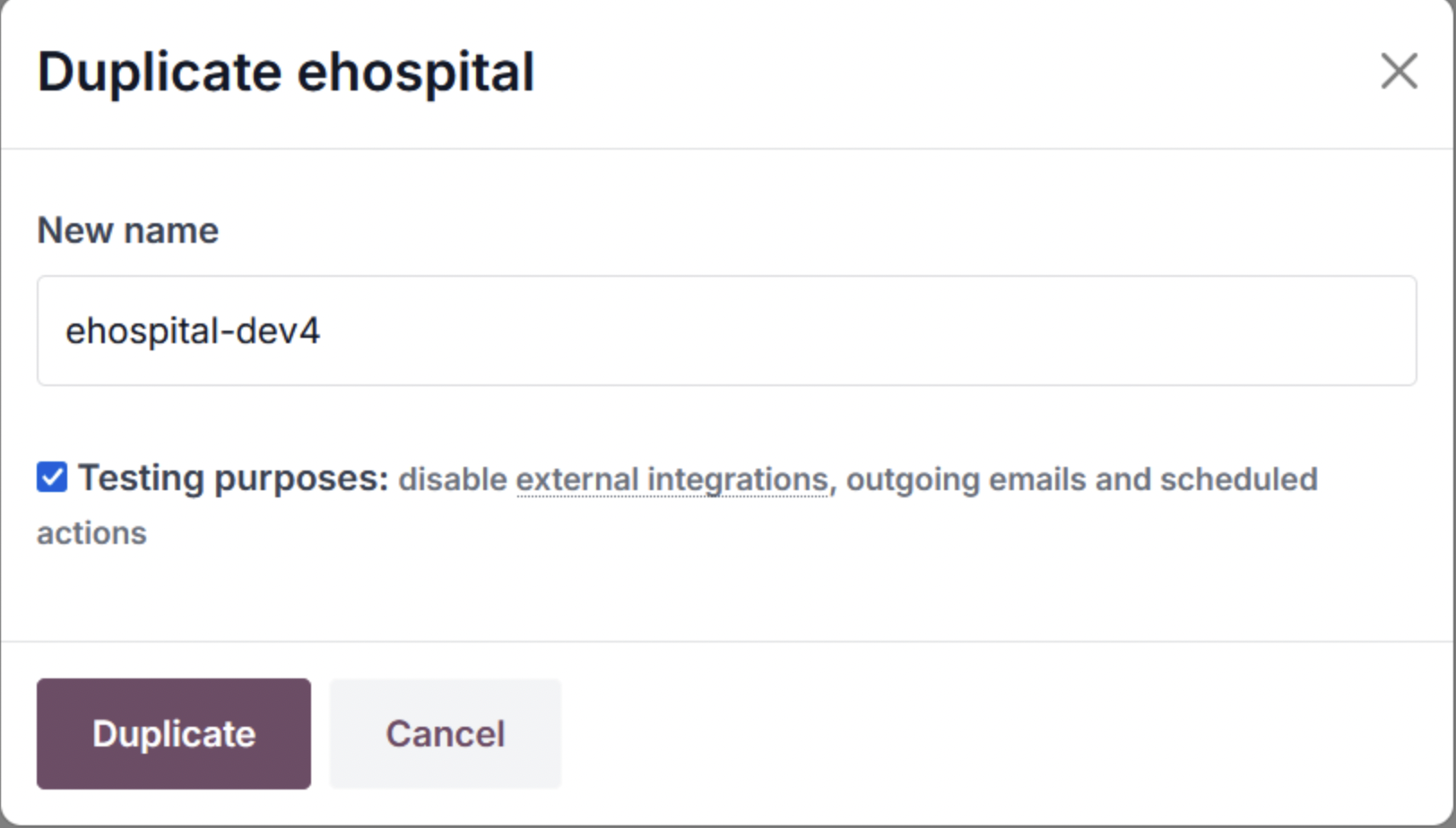
Note: Why it is important to give the test database a clear name
When duplicating a database, it is important to assign a clear and meaningful name to the test database.
For example, you may have a production system and create a copy specifically for a third party, such as an external expert or consultant. Although the login and password are identical for both the production and test databases, the third party will only have access to the test database URL.
They will not see or have access to the production database link, which means your live system remains safe.
In practice, test databases are often named after the specialist or purpose (for example, company-test-consultant, company-test-analysis) so it is always clear who the copy was created for and why.
Step 4. Log in to the duplicated (test) database
After the duplication process is completed, the system will redirect you to the newly created test database.
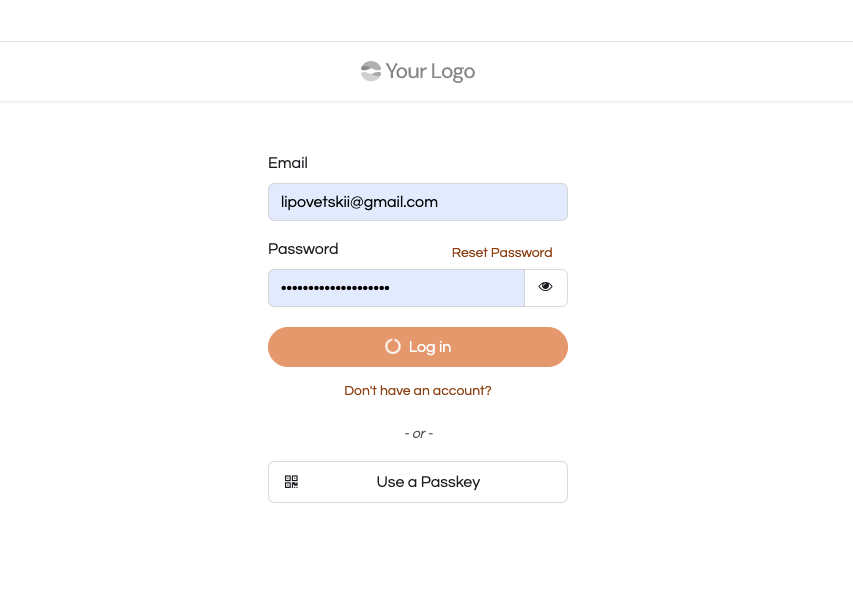
At this stage, Odoo will ask you to log in again. Use the same login and password as in the original (production) database.
Once logged in, you will have full access to the duplicated database, which can now be used safely for testing, analysis, and configuration.
See the screenshot below for reference.
Step 5. Confirm (activate) the test database to extend its availability
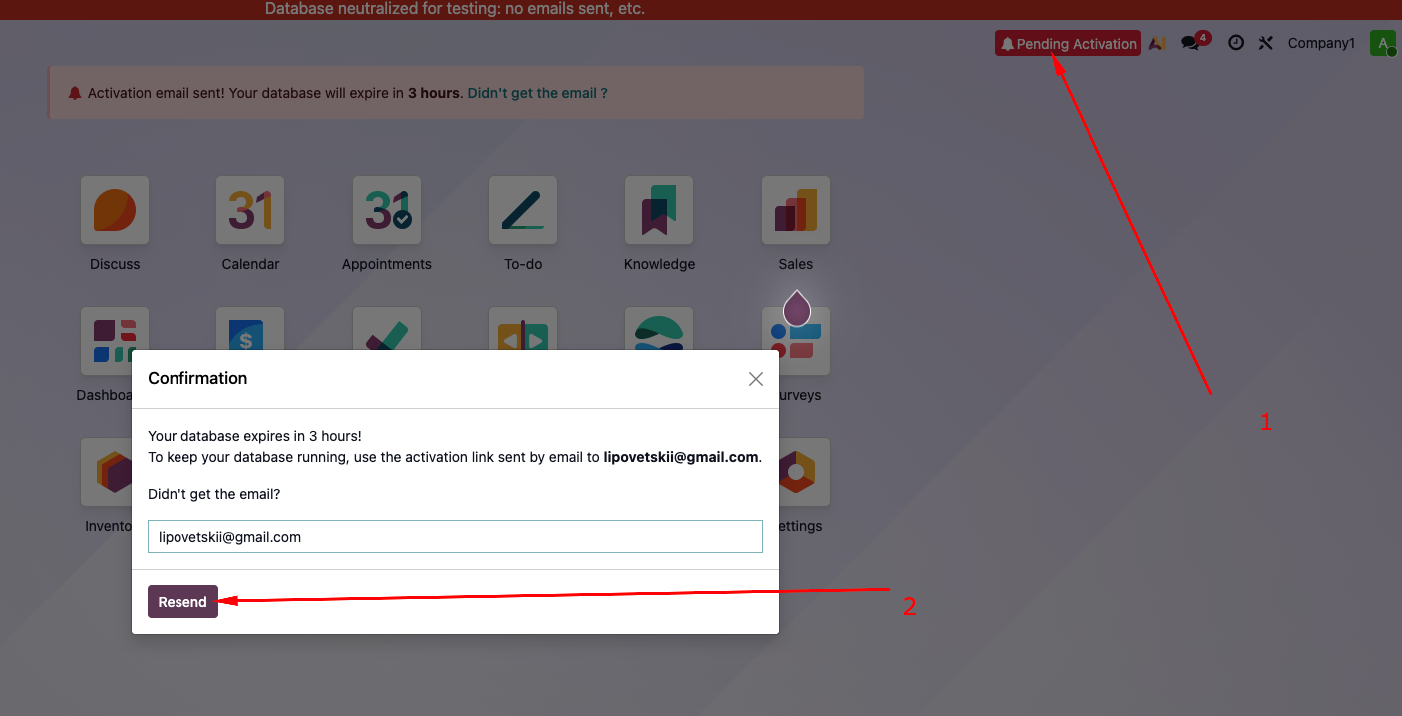
After logging in to the duplicated database, the system will prompt you to confirm the test database.
This step is important because without confirmation, the test database is available for only 3 hours and will be automatically deleted.
To extend the availability of the test database to 14 days, click the Confirm / Pending button.
Next, verify the email address to which the confirmation message will be sent, and click Send to receive the confirmation email.
Once the confirmation is completed, the test database will remain active for 14 days and can be safely used for testing and analysis.
See the screenshots below for reference.
Step 6. Activate the test database via email confirmation
After sending the confirmation request, open your email inbox and locate the message from Odoo.
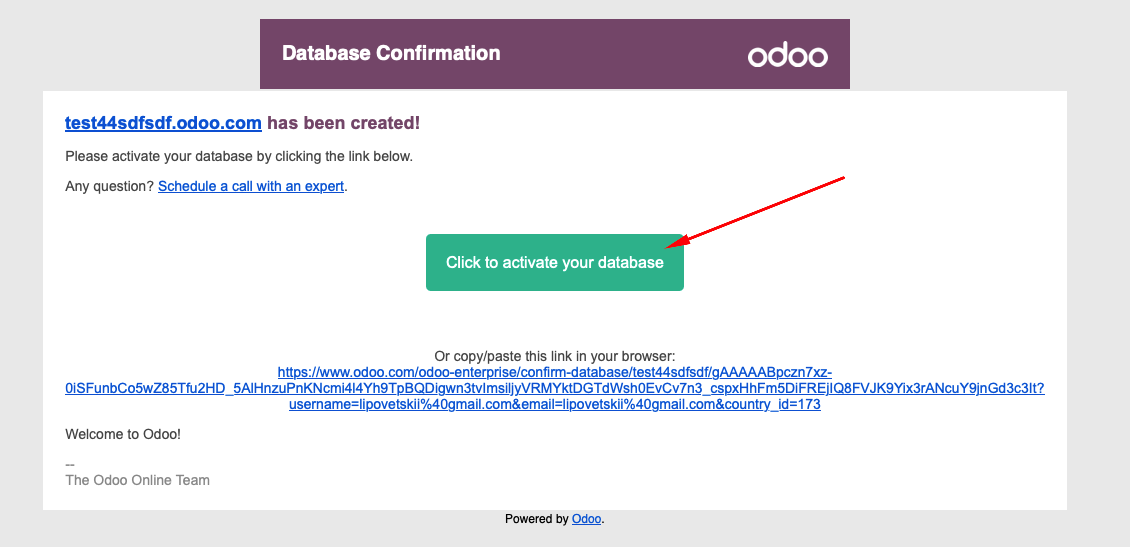
Click the confirmation button or link inside the email to activate the test database.
Once activated, the test database will remain available for 14 days.
It is important to note that the login and password for the test database are identical to those used in the production system.
The only difference is the URL (link) to the system, as the test database has its own separate address.
See the screenshot below for reference.