
Export data from Odoo
Kiedy pracujesz z bazą danych, czasami konieczne jest wyeksportowanie danych do oddzielnego pliku. W Odoo wartości można eksportować z dowolnego pola w dowolnym rekordzie. Aby to zrobić, aktywuj widok listy ((ikona listy), na elementach, które należy wyeksportować, a następnie wybierz rekordy, które powinny zostać wyeksportowane. Aby wybrać rekord, zaznacz pole wyboru obok odpowiedniego rekordu. Na koniec kliknij na Akcje, a następnie Eksport.
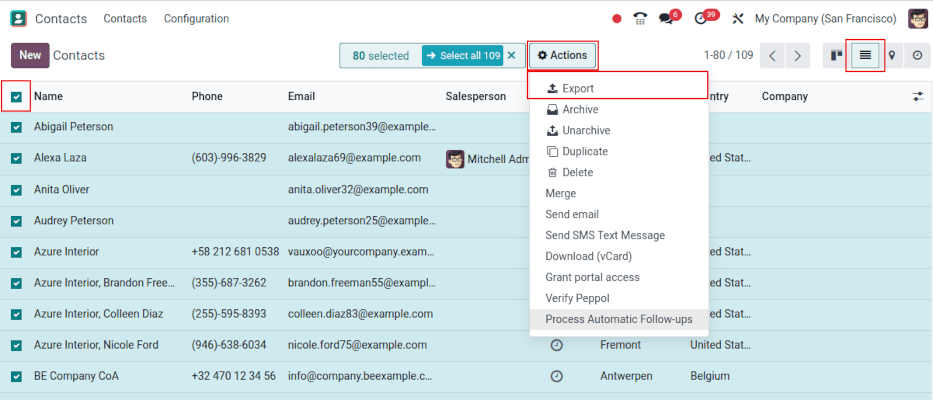
When clicking on Export, an Export Data pop-over window appears, with several options for the data to export:
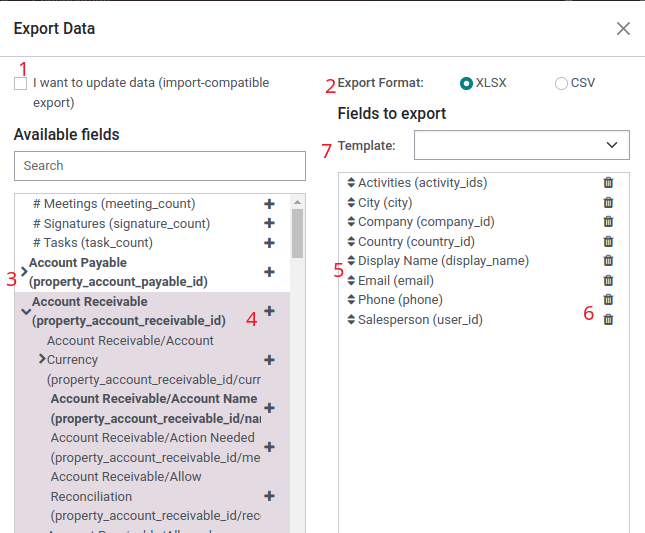
(1) With the "I want to update data (import-compatable export)" option ticked, the system only shows the fields that can be imported. This is helpful in the case where the existing records need to be updated. This works like a filter. Leaving the box unticked, gives many more field options because it shows all the fields, not just the ones that can be imported.
(2) When exporting, there is the option to export in two formats: .csv and .xls. With .csv, items are separated by a comma, while .xls holds information about all the worksheets in a file, including both content and formatting.
(3) These are the items that can be exported. Use the > (right arrow) icon to display more sub-field options. Use the Search bar to find specific fields.
(4) The + (plus sign) icon button is present to add fields to the Fields to export list.
(5) The ↕️ (up-down arrow) to the left of the selected fields can be used to move the fields up and down, to change the order in which they are displayed in the exported file. Drag-and-drop using the ↕️ (up-down arrow) icon.
(6) The 🗑️ (trash can) icon is used to remove fields. Click on the 🗑️ (trash can) icon to remove the field.
(7) For recurring reports, it is helpful to save export presets. Select all the needed fields, and click on the template drop-down menu. Once there, click on New template, and give a unique name to the export just created. Click the 💾 (floppy drive) icon to save the configuration. The next time the same list needs to be exported, select the related template that was previously saved from the drop-down menu.
Import data into Odoo
Importing data into Odoo is extremely helpful during implementation, or in times where data needs to be updated in bulk.
Warning
Imports are permanent and cannot be undone.
Data can be imported on any Odoo business object using either Excel (.xlsx) or CSV (.csv) formats. This includes: contacts, products, bank statements, journal entries, and orders.
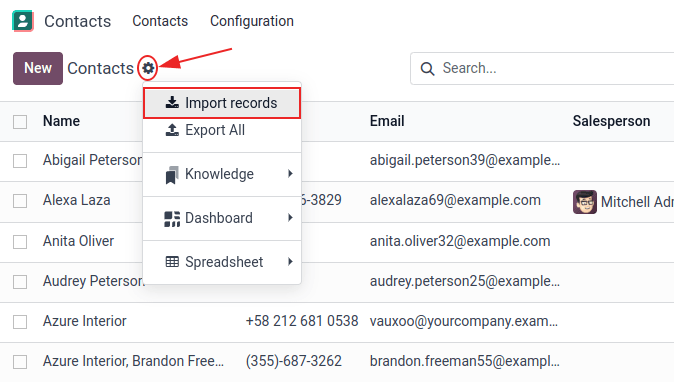
Open the view of the object to which the data should be imported/populated, click the (gear) icon and select Import records.
Click Import Template for Customers at the center of the page to download a template and populate it with the company’s own data. Such templates can be imported in one click since the data mapping is already preconfigured.
To upload the downloaded template or your own file, follow the next steps:
- Click Upload Data File and select the desired file.
- Adjust the Formatting options as needed (for CSV files only).
- Ensure all data in the File Column is correctly mapped to the appropriate Odoo Field and free of errors.
- (Optional) Click Load Data File to reload the same file or upload a different one.
- Click Test to verify that the data is valid.
- Click Import.
Adapt a template
Import templates are provided in the import tool of the most common data to import (contacts, products, bank statements, etc.). Open them with any spreadsheet software (Microsoft Office, OpenOffice, Google Drive, etc.).
Once the template is downloaded, proceed to follow these steps:
- Add, remove, and sort columns to best fit the data structure.
- It is strongly advised to not remove the External ID (ID) column.
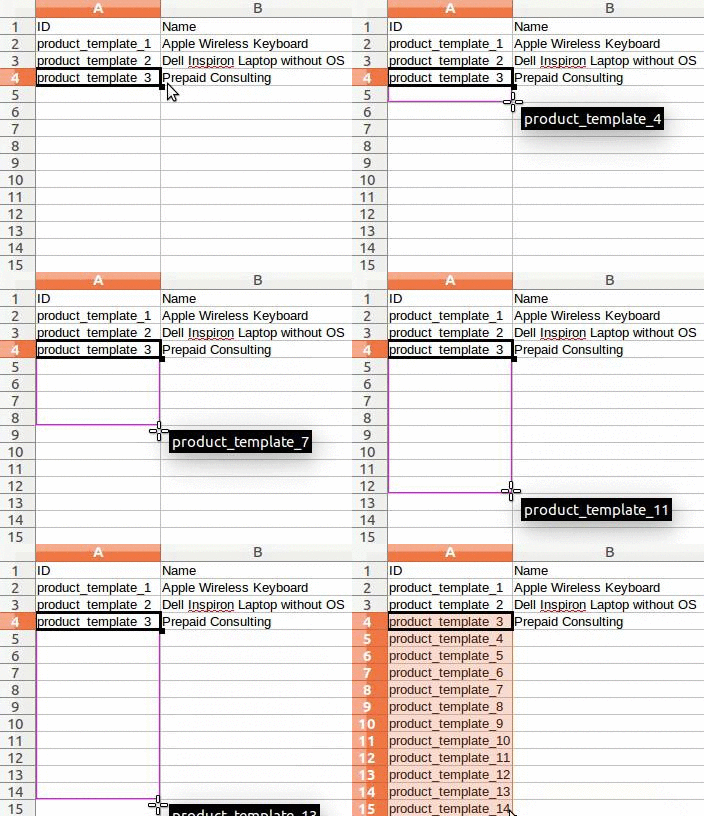
- Set a unique ID to every record by dragging down the ID sequencing in the External ID (ID) column.
Sometimes Odoo may not be able to map a column automatically, if its label does not fit any field within Odoo. However, new columns can be mapped manually when the import is tested. Search the drop-down menu for the corresponding field.
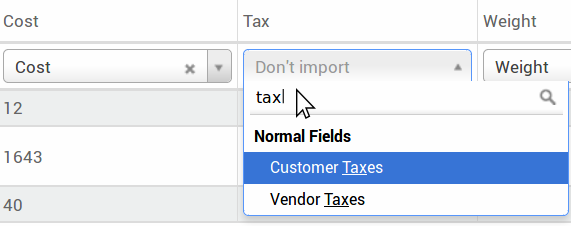
Then, use this field’s label in the import file to ensure future imports are successful.
Import relation fields
An Odoo object is always related to many other objects (e.g. a product is linked to product categories, attributes, vendors, etc.). To import those relations, the records of the related object need to be imported first, from their own list menu.
This can be achieved by using either the name of the related record, or its ID, depending on the circumstances. The ID is expected when two records have the same name. In such a case add / ID at the end of the column title (e.g. for product attributes: Product Attributes / Attribute / ID).
Update data in Odoo
Existing data can be updated in bulk through a data import, as long as the External ID remains consistent.
Prepare data export
To update data through an import, first navigate to the data to be updated, and select the (list) icon to activate list view. On the far-left side of the list, tick the checkbox for any record to be updated. Then, click Actions, and select Export from the drop-down menu.
On the resulting Export Data pop-up window, tick the checkbox labeled, I want to update data (import-compatible export). This automatically includes the External ID in the export. Additionally, it limits the Fields to export list to only include fields that are able to be imported.
Select the required fields to be included in the export using the options on the pop-up window, then click Export.
Import updated data
After exporting, make any necessary changes to the data file. When the file is ready, it can be imported by following the same process as a normal data import.
Danger
When updating data, it is extremely important that the External ID remain consistent, as this is how the system identifies a record. If an ID is altered, or removed, the system may add a duplicate record, instead of updating the existing one.